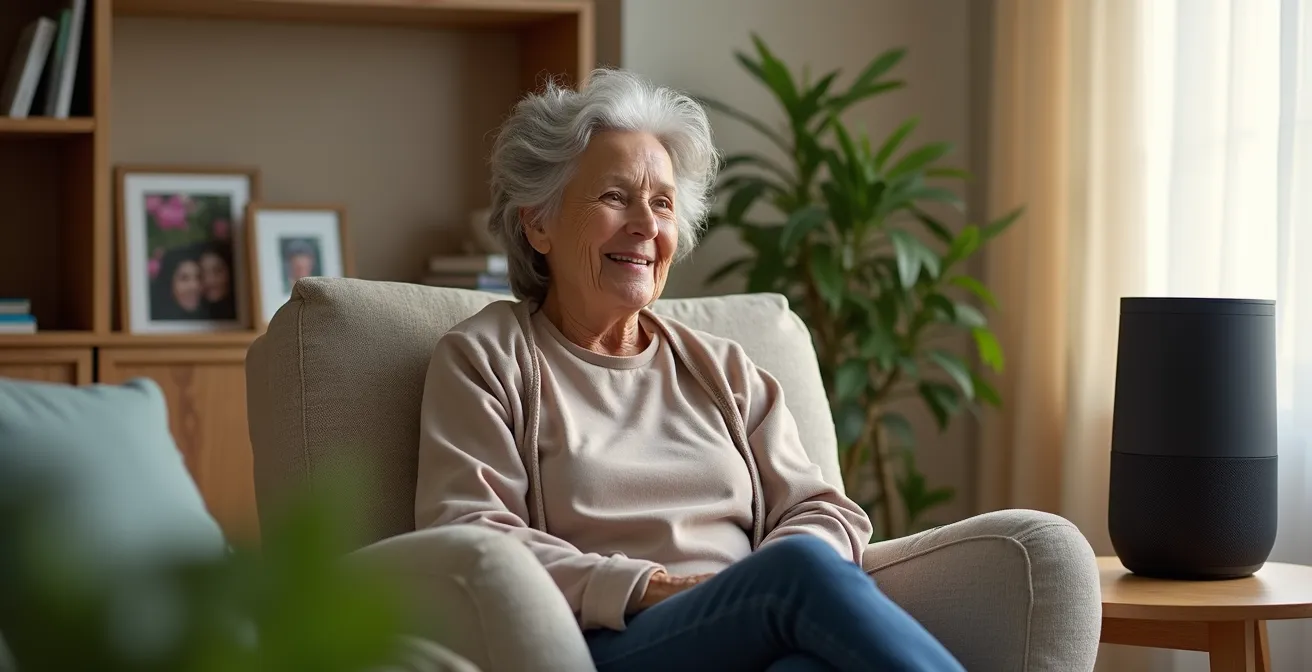
The best voice assistant for a senior with speech or motor challenges is not the one with the most features, but the one that ensures the highest reliability with the least frustration.
- Google Assistant generally offers slightly better voice recognition accuracy for non-standard speech patterns, reducing the need for repetition.
- Amazon Alexa excels in creating robust, automated routines and has a wider ecosystem of compatible accessibility devices.
Recommendation: Choose Google for superior first-time voice command recognition. Choose Alexa for building a more comprehensive, automated smart home safety net that relies less on voice alone.
For a senior navigating the challenges of a quiet voice, tremors, or memory lapses, the promise of a hands-free assistant is immense. The choice between Amazon Alexa and Google Home (now Google Assistant) is often presented as a simple feature-for-feature comparison. However, this approach misses the most critical factor for this audience: the reliability-per-interaction. When a simple command to turn on a light or call for help fails, it isn’t just an inconvenience; it’s a moment of frustration that can erode confidence and lead to technology abandonment.
The common advice focuses on what these devices can do—play music, set timers, read the news. But for a senior, the true value lies in how reliably they perform critical tasks that bypass physical limitations. It’s not about having thousands of “skills,” but about having a few essential functions that work flawlessly, every single time. This guide moves beyond the marketing claims to analyze which ecosystem truly delivers on the promise of dependable assistance, focusing on the nuances of voice recognition, fail-safe automation, and reducing the user’s cognitive load.
We will dissect real-world scenarios, from setting unmissable medication reminders to navigating a dark room, to determine which assistant provides the most practical and stress-free support. The ultimate goal is to find the system that empowers independence, not one that introduces a new source of technological frustration.
This article breaks down the most critical use cases for seniors, comparing how each platform performs in real-world situations. Explore the sections below to find the solutions best suited for your specific needs.
Summary: A Senior’s Guide to Choosing the Right Voice Assistant
- How to Set “Nagging” Medication Reminders That You Can’t Accidentally Dismiss?
- Lamp Control: How to Turn Off Lights Without Walking Across the Dark Room?
- Tile or AirTag: Which Tracker Is Loudest for Finding Lost Keys with Bad Hearing?
- How to Configure Smart Speakers so They Are Not “Listening” All the Time?
- Tablet vs. Smart Display: Which Screen Is Easier for Video Calling Grandkids?
- Motion Sensor vs. Voice Control: Which Is Better for Midnight Bathroom Trips?
- How to Configure Your Smartwatch to Detect Falls Without Triggering False Alarms?
- Smart Locks or Keypads: Which Is Easier to Use with Arthritis Hands?
How to Set “Nagging” Medication Reminders That You Can’t Accidentally Dismiss?
A simple “take your pills” reminder is easy to set on any device, but it’s also easy to dismiss or ignore, especially for someone with mild cognitive impairment or who is napping. The real challenge is creating a persistent reminder system that demands acknowledgment. This is where Amazon Alexa’s “Routines” feature shows a distinct advantage over Google Assistant’s more basic functions. While both can set alarms, Alexa allows for the creation of multi-step, looping announcements that only cease when a specific confirmation phrase is spoken.
This “nagging” capability is a game-changer for medication adherence. Instead of a single beep, you can program a routine that announces, “Time for your 10 AM medication,” and repeats it every five minutes across all devices in the house until the user responds with, “Alexa, I have taken my medication.” This active confirmation provides peace of mind for both the user and their caregivers. The effectiveness of these systems is significant; research found that 63.7% of voice assistant medication reminders resulted in the user taking action within 30 minutes, highlighting their value in daily health management. The key is configuring them for maximum reliability.
Action Plan: Setting Up Persistent Medication Reminders
- Enable ‘Start of Request’ and ‘End of Request’ audio confirmation sounds in the Alexa app’s Device Settings to provide crucial audio feedback for users with hearing or vision issues.
- Create a custom “Routine” named ‘Medicine Time’ that triggers a looping announcement every 5-10 minutes until it is dismissed with a specific, practiced confirmation phrase.
- Utilize the “Broadcast” or “Announce” feature within the routine to send the reminder to all connected smart speakers in the home, ensuring it’s heard regardless of the user’s location.
- Configure the “Drop In” feature with a small, trusted circle of caregivers, allowing them to verbally check in and confirm if medications were acknowledged if a reminder is repeatedly missed.
- Thoroughly test the system by having the senior practice the confirmation phrase multiple times to ensure the device’s voice recognition works reliably with their specific speech patterns.
Lamp Control: How to Turn Off Lights Without Walking Across the Dark Room?
For a senior with mobility issues, crossing a dark room to get to bed is a significant fall risk. Voice-controlled smart lights are an obvious solution, but their effectiveness hinges on one thing: the assistant’s ability to understand the command on the first try, especially when the user is tired and their voice may be weaker. This is where the underlying voice recognition technology becomes paramount. While both platforms are highly capable, independent analysis consistently shows a slight edge for Google Assistant in understanding varied speech patterns.
This is not just about raw accuracy percentages; it’s about contextual understanding. Google Assistant leads with an 87% accuracy rate for elderly users, excelling with slower speech and varied pronunciations, compared to Alexa’s 82%. This 5% difference can mean the world, representing the gap between a light turning off smoothly and a frustrating loop of repeating “Hey Google, turn off the bedroom light.” For a critical safety command, this superior reliability-per-interaction makes Google a slightly more dependable choice for direct voice control, particularly for those with noticeable speech difficulties.

However, the most robust solution often involves moving beyond voice commands alone. As the image above illustrates, a truly “smart” setup combines technologies. A well-placed motion sensor can create an automated, low-light pathway to the bathroom, eliminating the need for any command at all. This “fail-safe automation” is often a superior strategy for nighttime safety.
Tile or AirTag: Which Tracker Is Loudest for Finding Lost Keys with Bad Hearing?
Misplacing keys or a wallet is a universal frustration, but for a senior, it can be a source of significant anxiety. Bluetooth trackers like Tile and Apple’s AirTag offer a simple solution: tap a button on your phone to make the tracker ring. When hearing is a factor, the raw volume of the alarm is the most important feature. In this direct comparison, Tile is the clear winner. The Tile Pro, for instance, boasts a powerful alarm that is significantly louder and easier to pinpoint than the more subtle chime of an AirTag.
Furthermore, the Tile ecosystem is more platform-agnostic, working seamlessly with both Android phones and iPhones. This is crucial, as many seniors may not be locked into the Apple ecosystem. More importantly, Tile integrates directly with both Amazon Alexa and Google Assistant. This means a senior can simply say, “Alexa, find my keys,” and the Tile will start ringing without needing to find and operate a smartphone app. This hands-free capability dramatically lowers the cognitive load of finding a lost item. While AirTag has the vast Find My network for lost-in-the-wild items, for in-home finding, Tile’s volume and voice assistant integration make it the more practical choice for this audience.
Amazon also offers an array of Alexa-based accessibility features for those who struggle with hearing, vision, mobility and so on.
– Yahoo Tech Review Team, Yahoo Tech Smart Speakers Guide 2025
How to Configure Smart Speakers so They Are Not “Listening” All the Time?
The idea of an always-on microphone in the home is a major barrier to adoption for many seniors, who often have heightened privacy concerns. Addressing this requires more than just pointing to the physical mute button; it requires building trust through transparent and user-configurable controls. Both Google and Amazon have made strides here, but their approaches differ. All major voice assistants are designed to only start recording and processing audio after hearing a specific “wake word” (like ‘Alexa’ or ‘Hey Google’). Users can also review and delete their voice history at any time.
However, for those seeking the highest level of privacy, Apple’s Siri offers an advantage with more on-device processing, meaning less data is sent to the cloud. For Alexa and Google, the key is to utilize the privacy settings within their respective apps. You can disable features that use voice recordings to “improve the service” and set up automatic deletion of recordings on a rolling basis (e.g., every 3 months). The growing adoption of this technology, with 17% of adults over 50 now using voice assistants, underscores the importance of making these privacy controls easy to understand and manage. For an extra layer of visual assurance, you can create a routine where saying “Alexa, go private” not only mutes the microphone but also turns on a red smart light, providing an unmistakable trust-building feedback signal.
Tablet vs. Smart Display: Which Screen Is Easier for Video Calling Grandkids?
Staying connected with family is a primary motivator for seniors to adopt new technology. While a tablet (like an iPad) is versatile, a dedicated smart display (like an Amazon Echo Show or Google Nest Hub) is often a far superior solution for video calling, especially for users with tremors or less tech confidence. The primary advantage is the hands-free, voice-first interface. A command like, “Alexa, call Sarah,” is vastly simpler and requires less motor skill precision than finding an app, scrolling through contacts, and tapping a small call button on a tablet.
The design of a smart display is also more conducive to a natural conversation. With its stable base and powerful, room-filling speaker, it functions like a hands-free video phone. This is highlighted in devices like the Echo Show 8.
Case Study: The Echo Show 8 for Senior Communication
The Amazon Echo Show 8 is essentially a tablet with a powerful speaker built-in. It responds to all standard Alexa voice commands but adds an 8-inch touchscreen. This allows for simple, voice-initiated video calls to other Echo users or through services like Zoom. The combination of a large, stable screen and a high-quality speaker makes conversation clearer and more engaging. The device’s design, which blends voice control simplicity with immediate visual feedback, is ideal for seniors who benefit from both audio and visual cues during communication, reducing the cognitive load of making a call.

The sheer joy and connection facilitated by an easy-to-use device, as shown above, cannot be overstated. A smart display removes the technical barriers, allowing the focus to remain on the conversation with loved ones.
Motion Sensor vs. Voice Control: Which Is Better for Midnight Bathroom Trips?
We’ve discussed using voice to control lights, but for a recurring, predictable need like a midnight bathroom trip, is an active voice command really the best solution? When a person is disoriented from sleep, remembering the exact phrase (“Hey Google, turn on the bathroom light”) can be a challenge. The voice might be groggy, leading to failed recognition. This is a classic case where fail-safe automation is superior to active voice control.
A simple, well-placed motion sensor connected to a smart bulb or plug offers a “set it and forget it” solution. When the sensor detects movement—like feet hitting the floor—it can automatically turn on a light path to the bathroom at a pre-set dimness (e.g., 10% warm light) that won’t jolt the eyes. This system works passively, requiring zero cognitive load from the user in a vulnerable moment. It’s a perfect example of a synergistic system where different smart devices work together for a more robust outcome.
A simple motion-sensor-and-smart-bulb combo (like Philips Hue) can be a ‘set it and forget it’ solution that is often more reliable and less cognitively demanding for a senior than remembering a voice command in the middle of the night.
– American Foundation for the Blind, AccessWorld Magazine
The voice command should not be discarded entirely; rather, it should serve as a backup. The user can still say “Turn on the light” if needed, but the automated system handles the task 99% of the time, dramatically improving safety and reducing nighttime anxiety.
How to Configure Your Smartwatch to Detect Falls Without Triggering False Alarms?
Fall detection on smartwatches like the Apple Watch, Google Pixel Watch, and Samsung Galaxy Watch is a potentially life-saving feature. However, its reliability depends heavily on proper configuration to avoid the “boy who cried wolf” syndrome of constant false alarms. A false alarm can cause unnecessary panic and may lead the user or caregivers to disable the feature altogether. The key to accuracy is providing the watch with as much personal health data as possible and understanding the different sensitivity settings.
As the table below shows, each brand handles this differently. Samsung offers the most granular control with five sensitivity levels, while Apple auto-adjusts based on entered health data. Critically, testing has shown that setup matters. A case study in senior care facilities revealed that properly inputting user data (age, height, mobility status) can improve fall detection accuracy by up to 40%. Furthermore, the study found that wearing the watch on the dominant wrist yielded 15% better detection rates, likely due to more pronounced movement patterns.
| Setting | Apple Watch | Google Pixel Watch | Samsung Galaxy Watch |
|---|---|---|---|
| Sensitivity Levels | Auto-adjusts based on age/activity | 3 levels (Low/Medium/High) | 5 levels with custom threshold |
| Required User Data | Age, height, wheelchair use | Age, mobility status | Age, height, weight, activity level |
| False Alarm Prevention | 60-second countdown | 30-second countdown | 45-second countdown + vibration |
| Emergency Contact Options | Up to 5 contacts + 911 | 3 contacts + emergency services | 4 contacts + local emergency number |
| Testing Mode | No official test mode | Practice mode available | Simulation mode in settings |
Key Takeaways
- The best voice assistant is the one that minimizes user frustration through high first-time command recognition.
- Automated systems (like motion sensors) are often safer and more reliable than voice commands for predictable needs like nighttime lighting.
- Building trust is key; use privacy settings and visual cues to make seniors comfortable with the technology.
Smart Locks or Keypads: Which Is Easier to Use with Arthritis Hands?
Struggling with a key is a daily pain point for anyone with arthritis or hand tremors. Smart locks offer a clear solution, but not all are created equal. The choice between a keypad and other hands-free methods depends entirely on the user’s specific abilities. A keypad with small, flat buttons can be just as difficult to use as a traditional key. The best solution is often a synergistic system that provides multiple, layered methods of entry.
For someone with severe arthritis, a fully automated system is ideal. Look for smart locks with geofencing, which automatically unlocks the door when your smartphone is detected within a few feet. This requires zero physical interaction. The next best option is voice unlock (e.g., “Alexa, unlock the front door”), which requires a spoken PIN. This is secure and bypasses physical challenges, provided the user’s speech is clear enough for reliable recognition. If a keypad is necessary for backup, choose one with large, backlit, rubberized buttons that are spaced far apart and provide tactile and audible feedback when pressed. The ultimate goal is to create a system where the physical key is the absolute last resort, not the primary method of entry.
Here are the key features to look for in an arthritis-friendly smart lock system:
- Geofencing or Bluetooth Proximity Unlock: The door unlocks automatically as you approach.
- Voice Unlock: Requires a simple spoken PIN, ideal for users with clear speech.
- Large-Button Keypad: Buttons should be at least 1-inch apart, backlit, and provide a “click” or vibration.
- Key Fob Backup: A small remote with a large button that can be pressed with the palm of the hand.
By carefully selecting technology that aligns with specific physical abilities and focusing on reliability over features, a smart home can transform from a novelty into an essential tool for maintaining independence and safety.
Frequently Asked Questions About Voice Assistants for Seniors
Do smart speakers record everything I say?
No, they are designed to only begin recording and processing your request after hearing the designated wake word, such as ‘Alexa’ or ‘Hey Google.’ As confirmed in guides on AI for seniors, you have full control to review and delete your voice history at any time through the device’s app.
Which assistant offers the best privacy protection?
For users with maximum privacy as their top concern, Apple’s Siri generally offers the strongest protection. This is because it performs more of its voice processing directly on the device itself, reducing the amount of data sent to external servers.
Can I create a visual indicator that shows when the microphone is off?
Yes, this is a great way to build trust. You can connect a simple smart plug to a small red lamp. Then, create a voice routine (e.g., “Go private”) that simultaneously mutes the speaker’s microphone and turns on the red light, providing clear, unambiguous visual confirmation that the device is no longer listening.